| The Member Logins feature allows you to make certain pages or products visible only to people of your choice. Click Member Logins on the side menu to begin. Creating Security Codes (Groups)
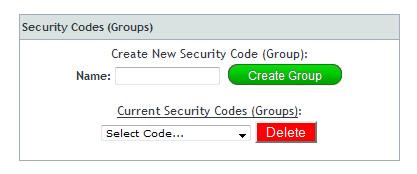
First, you must create a group that categorizes together your specific users. Type a name for a group in the Name field and then click Create Group. This name is only visible to you; your members will not be able to see it.
 Creating New Users
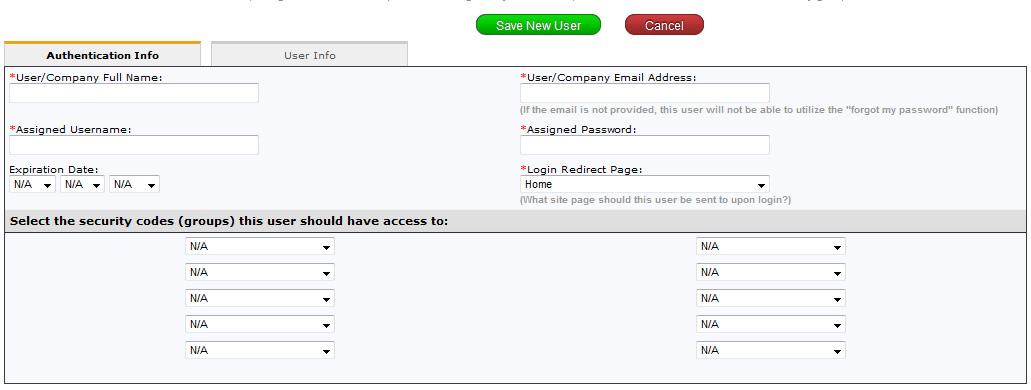
Now you need to add authorized users for your group. Click the green Create New User button and fill in the information for each specific user. Under the Login Redirect Page, you can choose which site will only be visible for the user. This is the page that only they have access to. Then click Save New User. To send users their username and password, you must select them from the Current Authorized Users drop-down menu and click Send Login Info to User. This sends the login info to the email address that you typed in for that user.
 Adding an Authorized Members Login Page
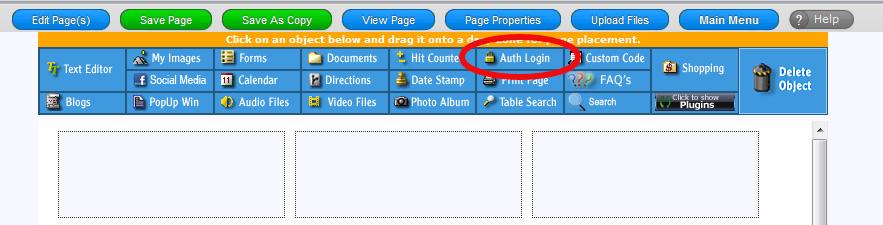
Next you need to go to 'Pages' and select which page you want the members login to be on. Once you open that page, you need to drag the 'Auth Login' object onto it and then save the page. Now that page is setup for signing in authorized users. You are ready to have authorized users enter the page that you selected for them.
Making a Product Available to Secure Users
Please see Security Code under the Advanced Options Tab in Adding New Products for more information.
|